
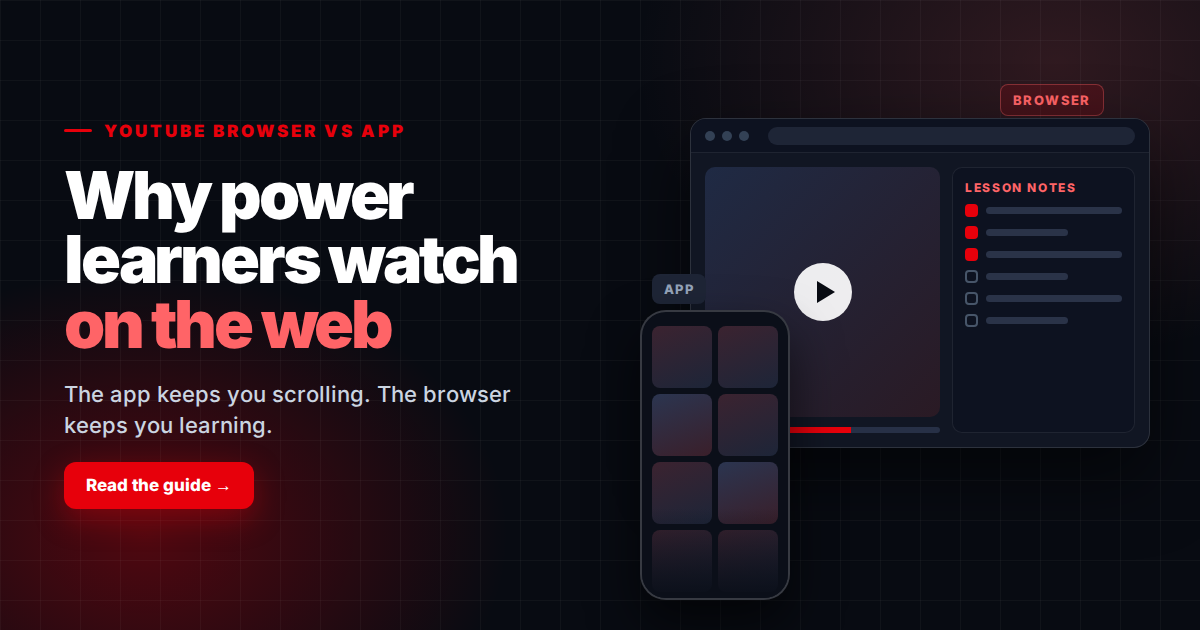
The YouTube app is built to keep you watching, and that quietly works against you when you’re trying to learn. Find out why power learners switch to the browser, and how to set up the same focused space on your computer and phone.
The short version
- The YouTube app is built to keep you watching. The browser lets you decide what you watch.
- On a computer, the browser gives you shortcuts, extensions and room for notes.
- On a phone, the right browser matters. Brave, Firefox and Edge add features the app does not have.
- You can set up a focused learning space in about 15 minutes.
YouTube is where most people already are. And more of them come to learn.
- 85% of U.S. adults use YouTube (Pew Research Center, 2025).
- 74% of teens in seven European countries watch YouTube to learn something new for school (Livity and Oxford Economics study for YouTube, 2025).
- 71% of those teens also watch to learn something for fun.
So you are not alone if YouTube is your classroom. The problem is where you open it.
The app is built to keep you watching. It shows you the next video before this one ends. It pushes Shorts into your feed. YouTube says Shorts now average over 200 billion views a day (YouTube Blog, 2025).
That is great for entertainment. It is bad for learning. You sit down to finish a lesson on Excel formulas. Twenty minutes later you are watching cooking clips.
This is why heavy users settle the YouTube browser vs app question fast. They watch in a browser. The browser lets you decide what shows up on your screen.
In this guide you will learn:
- What a YouTube superuser does differently
- Seven reasons they pick the browser
- How to get the same control on your phone
- A five-step setup you can copy in 15 minutes
What Makes Someone a YouTube Superuser
A superuser is not someone who watches the most. It is someone who watches with a goal.
They open YouTube to learn a skill. Then they close it. They take notes. They finish a playlist from start to end.
You do not need to be technical to work this way. You need a setup that stays out of your way.
You might be a superuser if…
- ☐ You watch full tutorials, lectures or courses, not only short clips
- ☐ You pause to take notes or try what you saw
- ☐ You rewatch parts to catch a step you missed
- ☐ You change the playback speed often
- ☐ You lose time when a recommended video pulls you away
Ticked three or more? The browser will fit you better than the app.
YouTube Browser vs App: 7 Reasons Superusers Pick the Web
Each reason below solves one problem learners run into. Start with the ones that match your checklist.
1. Keyboard shortcuts give you full control
In the app you tap, drag and hope you land on the right second. In a browser your keyboard does the work.
These are the shortcuts learners use most (YouTube Help):
- J and L jump back or forward 10 seconds
- K or the spacebar pauses and plays
- < and > slow down or speed up
- 1 to 9 jump to 10% to 90% of the video
- , and . move one frame at a time while paused
- C turns captions on or off
The frame step is useful for coding or design lessons. You can freeze the exact screen you need to copy.
2. Extensions hide what distracts you
The app shows you what YouTube wants you to see. In a browser you can change that.
An extension like Unhook hides recommendations, Shorts, comments and the home feed. You open YouTube and see a search bar. Nothing else.
SponsorBlock skips sponsor segments and long intros. Other viewers mark those parts, so you get straight to the lesson.
3. Notes and video sit side by side
On a computer you can put the video on one half of the screen. Your notes go on the other half.
You type as you watch. You do not switch apps or lose your place.
Study tools like CoursifyYT go one step further. They pin your notes to timestamps, so a click takes you back to the exact moment.
4. Tabs keep your lessons in order
In the app, opening a new video replaces the one you were on. In a browser you can open the next three lessons in tabs.
You work through them in order. Your place in each video stays saved in its tab.
5. AI tools work right next to the video
Most YouTube videos have a transcript. On a computer you open it from the video description and copy it.
Then you can paste it into an AI chatbot like NotebookLM. Ask it to:
- Create study tools like Flashcards and Mind maps.
- Quiz you on what you watched
- Explain one step in simpler words
This turns watching into active study. It is much easier with a keyboard and a second window.
6. Fewer alerts pull you away
The app sends notifications about new uploads, live streams and comments. Each one is a reason to leave your lesson.
A browser tab stays quiet unless you allow alerts. You stay on the video you chose.
7. Playback you can shape
In a browser you can set a custom speed in small steps. Many learners like 1.25x or 1.5x for lectures.
Extensions add more. Enhancer for YouTube on Chrome lets you go from 0.07x to 16x. It also adds cinema mode and custom shortcuts.
One note. YouTube Premium members now get speeds up to 4x in the app too (9to5Google, 2025). So speed alone is not a reason to switch if you pay for Premium.
YouTube on Your Phone: What Mobile Browser Add-Ons Give You
The browser wins on your phone too. But only if you pick the right one.
Chrome for Android still has no extension store. So watching YouTube in mobile Chrome gives you little over the app. These three browsers do more.
Brave: background play and built-in blocking
In January 2026, Google blocked free background play in most mobile browsers. Google said the feature is meant for Premium members (Android Authority, 2026).
Brave restored it within days (Thurrott, 2026). Turn it on in Settings > Media > Enable Background Audio. If it stops working, update Brave’s filter lists under Shields & Privacy > Content Filtering.
This matters for lectures and podcasts. You can lock your phone and keep listening.
Brave also blocks ads by default. Its Playlist feature lets you queue videos in order. On iPhone, Apple made Brave remove offline Playlist downloads in June 2026 (PiunikaWeb, 2026).
Firefox for Android: real extensions
Firefox for Android runs full extensions. That means your desktop tools can come with you.
- Unhook works on the mobile YouTube site. It hides recommendations, comments and autoplay.
- SponsorBlock skips sponsor segments on your phone too.
Edge for Android: a growing extension store
Microsoft added an extension store to Edge for Android in 2025 (9to5Google, 2025). It is still labeled beta and the list is short. Check it for new YouTube tools.
On a phone, the browser you choose matters more than the browser vs app question.
How to Watch YouTube in a Browser for Focused Learning
You can copy this setup in about 15 minutes. Do it once and it stays.
1. Give YouTube its own spot in your browser
Pin YouTube as a tab so it opens in the same place every time. In Chrome or Edge you can also install it as an app from the address bar. It then opens in its own window, away from your other tabs.
2. Add one distraction blocker
Install Unhook and CoursifyYT. Turn off recommendations, Shorts and the home feed. Keep search on.
Start with two extensions. Too many can slow YouTube down or clash with each other.
3. Learn five shortcuts
Write these on a sticky note: K, J, L, < and >. Use them for a week and they become habit.
4. Open notes or an AI chatbot beside the video
Split your screen. Put the video on the left. Put your notes app or an AI chatbot on the right.
On Windows press Windows key + Left arrow to snap a window to one side. On a Mac, hover over the green button at the top of a window and pick a side.
5. Turn a channel into a course with CoursifyYT
Most channels are not built like courses. Videos appear by upload date, not by what you should learn first.
CoursifyYT fixes that. It turns a YouTube channel into an ordered path, from first concept to advanced. It adds:
- Notes pinned to timestamps
- Quizzes and flashcards with spaced review
- Mind maps and searchable transcripts
- Progress tracking, so you see what you finished
It works on Chrome, Edge and Firefox.
Turn YouTube From a Feed Into a Classroom
The app and the browser show the same videos. What changes is who is in charge.
In the app, the feed decides what comes next. In the browser, you do. That is the real reason superusers switch.
You do not need new skills or paid tools. You need a quieter screen and a clear path through the videos you picked.
Your next step (15 minutes)
- Open YouTube in your browser and pin the tab (1 minute).
- Install one distraction blocker and hide recommendations and Shorts (5 minutes).
- Pick one channel you want to learn from and turn it into a course with CoursifyYT (9 minutes).
Stop watching random videos. Start finishing courses.
CoursifyYT turns any YouTube channel into a structured course with notes, quizzes and progress tracking.
Frequently Asked Questions
Is it better to watch YouTube on a browser or the app?
For learning, the browser is usually better. It gives you keyboard shortcuts, extensions that hide distractions and room for notes beside the video. The app is built to keep you watching the next video. If you watch for fun on a phone, the app works fine.
Why do people watch YouTube in a browser instead of the app?
Heavy users want control. In a browser they can hide recommendations and Shorts, skip sponsor segments, use shortcuts and open lessons in tabs. They can also put notes or an AI chatbot next to the video. The app offers far fewer ways to shape what shows up on screen.
Can you play YouTube in the background on a mobile browser?
Yes, but only in some browsers. In January 2026 Google blocked free background play in most mobile browsers. Brave restored it within days. Turn it on in Settings > Media > Enable Background Audio. In other browsers and the app, background play needs YouTube Premium.
How do I block YouTube Shorts in my browser?
Install a distraction-blocking extension like Unhook. It hides Shorts, recommendations, comments and the home feed. You choose what to hide from a simple menu. Unhook works on Chrome and Firefox, including Firefox for Android. Enhancer for YouTube on Chrome can also hide Shorts.
What are the best YouTube keyboard shortcuts for learning?
Start with five. K pauses and plays. J and L jump back or forward 10 seconds. The < and > keys slow down or speed up. For coding or design lessons, the comma and period keys move one frame at a time while paused. C turns captions on or off.
How can I learn on YouTube without distractions?
Watch in a browser, not the app. Add one blocker like Unhook to hide recommendations and Shorts. Split your screen with notes or an AI chatbot. Then turn a channel into an ordered course with CoursifyYT, so you know what to watch next and track what you finish.
Sources
- Pew Research Center. (2025). 5 facts about Americans and YouTube. https://www.pewresearch.org/short-reads/2025/02/28/5-facts-about-americans-and-youtube/
- YouTube. (2025). How European kids, parents, and teachers are using YouTube for education (study by Livity and Oxford Economics). YouTube Official Blog. https://blog.youtube/news-and-events/eu-youtube-for-education-study-2025/
- YouTube. (2025). Neal Mohan at Cannes Lions 2025: What 20 years of YouTube reveals about creativity’s future. YouTube Official Blog. https://blog.youtube/news-and-events/neal-mohan-cannes-2025/
- Google. (n.d.). Keyboard shortcuts on YouTube. YouTube Help. https://support.google.com/youtube/answer/7631406?hl=en (accessed October 2026)
- Unhook. (n.d.). Unhook – Remove YouTube Recommended & Shorts. Chrome Web Store. https://chromewebstore.google.com/detail/unhook-remove-youtube-rec/khncfooichmfjbepaaaebmommgaepoid (accessed October 2026)
- SponsorBlock. (n.d.). SponsorBlock – Skip over YouTube Sponsors. https://sponsor.ajay.app/ (accessed October 2026)
- CoursifyYT. (n.d.). Turn any YouTube channel into a course. https://coursifyyt.com/ (accessed October 2026)
- Enhancer for YouTube. (n.d.). Enhancer for YouTube. Chrome Web Store. https://chromewebstore.google.com/detail/enhancer-for-youtube/ponfpcnoihfmfllpaingbgckeeldkhle (accessed October 2026)
- 9to5Google. (2025). YouTube Premium rolls out high-quality audio, faster playback speeds, and more. https://9to5google.com/2025/09/26/youtube-premium-playback-speeds/
- Android Authority. (2026). YouTube may be blocking background play on third-party browsers (Update: Google confirms). https://www.androidauthority.com/youtube-background-play-broken-3636179/
- Thurrott. (2026). YouTube Blocks Background Play on Mobile Web Browsers, But Brave is Resisting. https://www.thurrott.com/cloud/332298/youtube-blocks-background-play-on-mobile-web-browsers-but-brave-is-resisting
- Brave. (n.d.). Brave Playlist. https://brave.com/playlist/ (accessed October 2026)
- PiunikaWeb. (2026). Apple forces Brave for iOS to remove free offline YouTube playlist download feature. https://piunikaweb.com/2026/06/17/brave-for-ios-removes-free-offline-youtube-playlist-download-feature/
- Mozilla. (n.d.). Unhook: Remove YouTube Recommended Videos Comments. Firefox for Android Add-ons. https://addons.mozilla.org/en-US/android/addon/youtube-recommended-videos/ (accessed October 2026)
- Mozilla. (n.d.). SponsorBlock – Skip Sponsorships on YouTube. Firefox for Android Add-ons. https://addons.mozilla.org/en-US/android/addon/sponsorblock/ (accessed October 2026)
- 9to5Google. (2025). Chrome for Android doesn’t have extensions, but Microsoft Edge now has a whole store. https://9to5google.com/2025/03/14/microsoft-edge-has-an-extension-store/